Intro
Schets+De Blay

Email signature generator

Please follow the instructions precisely to set up your Schets+De Blay email signature.

Step 1: Configuration

Enter your personal information in the fields below.

+32 (0)
Please select your office.
Step 2: Copy your signature

Press the copy button to add the signature to your clipboard

Step 3: Add your signature to your email client

Follow these instructions to the letter!
  1. From the new message menu, click the signature icon outlook signature icon  and click  “Signatures...”
  2. The signature settings should now open. Click the button to add a new signature
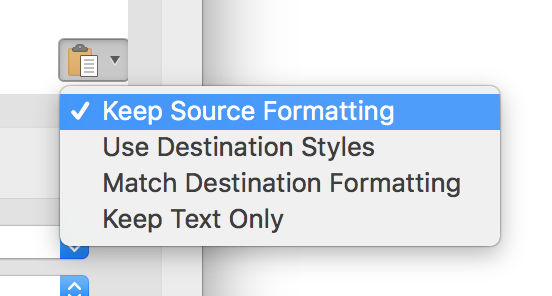
  3. After you‘ve created a new signature. Use your right mouse click in the largest input box and make sure to paste with “keep source formatting”
  4. You can now also choose to use this signature as the default signature for new email messages. Then press OK. (If you chose not to do this, the signature will be available from the list under the signature icon.)
  5. Done!
  1. At the top right of your screen, click on the outlook settings icon. It looks like this:  the outlook settings icon
  2. In the menu that opens, scroll to the bottom to and click view all outlook settings. It looks like this:view all outlook settings
  3. The general settings for Outlook have now opened. In the list you should see an item that says compose and reply. Click it.
  4. The first item on that page is your email signature.
    • If you already have an email signature for Schets+De Blay, select it from the list and edit it by erasing everything in the textfield and pasting the signature you just created.
    • if you don‘t have an email signature for Schets+De Blay yet start by filling out a name, next paste the generated signature in the large text box.
  5. Press save.
  6. Done!
  7. (Optional final step: You can now also set the Schets+De Blay email signature as the default for new messages you send.)
  1. Go to Outlook > Preferences
  2. Click on the second line under email on signatures
  3. If there are no signatures in this list, click to add one.
  4. Paste the generated signature in the textbox.
  5. Make sure you select keep source formatting from your paste options!:
    Keep source formatting
  6. You can now select this signature as the default signature at the bottom of the page.
  7. Succes!
  1. Go to Mail > settings
  2. Click in the list of icons on signatures
  3. Look in the left column for your Schets+De Blay account.
  4. Select your Schets+De Blay mailsignature (if you don‘t have one yet you can click the plus sign at the bottom to create one.)
  5. Make sure the checkbox next to “always match my default message font” is switched off!
  6. Paste the generated email signature in the white box on the right.
  7. Succes!
  1. Click at the top right on  the settings icon  and then at the top of the menu on view all settings
  2. Scroll down until you reach the signature editor
  3. Paste the generated signature in the textbox
  4. Save your changes (bottom of the page)
  5. Succes!